COMP1406 - Tutorial
#6
Layout Managers


|
COMP1406 - Tutorial
#6
Layout Managers
|
|
Problem 1 -Border Layout
Open the file DVDGUI_Border.java, and examine and compile the code. The DVDGUI_Border.java class represents the GUI for the DVD application that will use a BorderLayout manager. Compile the code and run it. Notice that the window is blank.
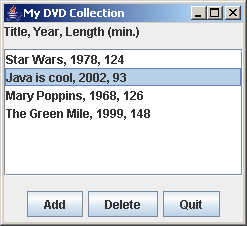
Add code that will make the window appear as shown below (using a BorderLayout manager). Notice that the middle item is a JList. Use the String[] sampleData provided to populate the JList with contents. Recall that when using a BorderLayout, you do NOT have to have a component in each of the 5 regions. Use a JPanel to group all three buttons into the SOUTH border region.
Problem 2 -Manual Layout
Open and examine the file DVDGUI_Manual.java. This class class represents the GUI for the DVD application that will use no layout manager. Compile the code and run it. Notice that the window is blank.
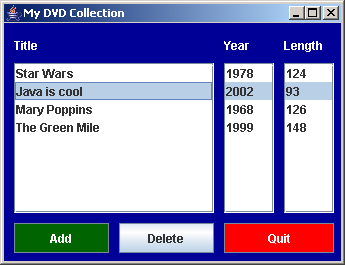
Modify the sample code by setting the layout manager to be null and then manually locating the required components as is done in section 4.1 of the course notes. Use the String[] provided in the sample code for the movie titles, years and durations. The window you create should appear "roughly" as shown below. Since there is no layout manager, you will have to set the (x,y) location and width and height for each component using the setLocation() and setSize() methods of the components. Do this consistent with section 4.1 of the course notes (Example on page 98). This can be tedious work, as you will see. Part of the purpose of this tutorial is for you to realize how the layout managers can help.
For the example window below we used a
width of 200
for the first list and 50 for the other two, while all 3 have a height
of 150 pixels. We also set a 10 pixel margin around the border of
the window. Lastly, you can use setBackground()
and setForeground() methods to
change the color for each component. These methods take a
color object that you can make using new
Color(r,g,b)
where r,g,b are the amounts of red/green/blue in
the color you want (from 0 to 255). Once you have created the
window, notice what "doesn't" happen when you resize the window.
Problem 3 -Grid Bag Layout
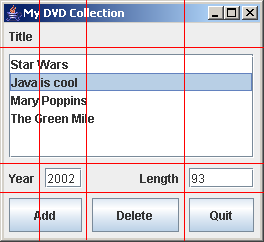
The DVDGUI_GridBag.java represents the GUI for the DVD application that will use a GridBagLayout manager. Compile the code and run it. Notice that the window is blank. Add code that will make the window appear "roughly" as shown below. We've taken the liberty of drawing some lines that define the grid you should use.
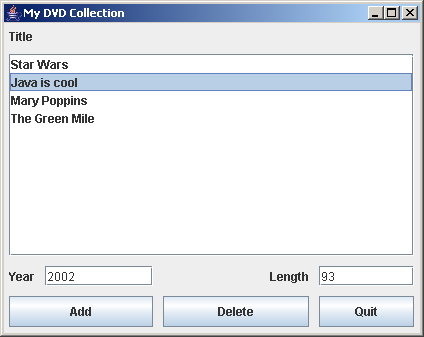
When you have completed your code the window should resize properly as shown below. Note that you will likely not get it to look exactly as shown, but try your best. You will need to play with the fill, anchor, weightx and weighty constraints for the various components (see section 6.1 of the notes).
When you are done all three problems, demonstrate your code for the TA to get credit for the tutorial.
Try enhancing the look of your DVDGUI_GridBag.java
GUI by
adjusting the look and feel, spacing, colors and borders.
You may have to look in the JAVA API to get some ideas on available
methods.