|
COMP1406 - Tutorial
#7
Dialogs
 |
 |
Purpose:
The purpose of this tutorial is to give you practice creating a user-defined dialog that uses the DialogClient interface described in section 6.4 of the course notes.
Demonstration:
Open the java file Demo1/SongsAreUsMain.java within JCreator and examine the code. Open the other classes as well. The code consists of the following classes.
SongsAreUsMain.java //The GUI main
window (JFrame subclass)
SongListPanel.java //The view of the main window (JPanel of GUI
components)
SongDetailsDialog.java //The Dialog window for editing song details
(JDialog subclass)
DialogClient.java //interface with callback methods for dialog clients.
MusicStore.java //Model class representing a collection of songs
Song.java //Model class representing a song
These classes interact with each other according to a Model-View-Control architecture. The data model is represented by the MusicStore and Song classes, the GUI interaction control is in the SongsAreUsMain class and the view is represented by the SongListPanel class. In addition there is a SongDetailsDialog class representing a dialog window that communicates with the main window using a DialogClient interface. For the purposes of this tutorial the only classes you should need to modify are: SongsAreUsMain and SongDetailsDialog.
First study the code and get a sense of how it's supposed to work, and what is contained in each class. What is missing from the code is the interaction that the main window is supposed to have with the dialog using the DialogClient interface callback methods. The interaction between the main window and dialog is similar to that of the Email Buddy application illustrated in section 6.4 of the course notes. Use that example to help you with this code. Getting this code to work will involve solving the first two problems below.
Unlike other tutorials so far, the demo code provided will not compile initially. It is part of problem 1 to add missing pieces so that the code will compile. Specifically the following statement in the SongsAreUsMain class's addSong() method will not compile:
SongDetailsDialog dialog = new SongDetailsDialog(this, this, "Song Details Dialog", true, songBeingEdited);
That is because the this object being passed in as the second parameter is not yet recognized as a kind of object that implements the DialogClient interface.
Problem 1
A Song Details Dialog
The main window is intended to communicate with the
dialog using the DialogClient interface.
However the SongsAreUsMain class will
not currently compile because it does not yet implement the DialogClient interface. (Can you tell from
the compile error why the code is not compiling?) For problem 1 we want
you to modify SongsAreUsMain class so
that the code can at least compile.
Specifically here are the things you will have to do.
1) Change the definition of the SongsAreUsMain
class to that it officially implements the
DialogClient interface
2) Add the methods of a DialogClient interface
to the SongsAreUsMain class. These
methods can just have empty {} bodies
for now.
After completing problem 1 the code should at least compile and, when run, produce the window shown below.
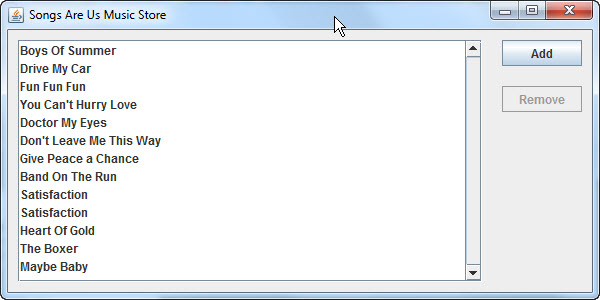
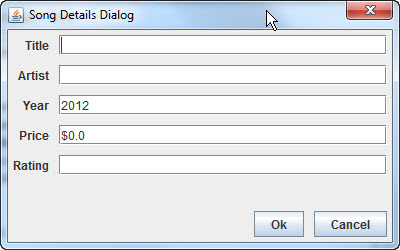
In addition when the "Add" button is pressed a song details dialog should launch as shown below, however, when the OK or Cancel button of the dialog is clicked probably nothing will happen. This is because the interaction between the main window and the dialog will not work until you have completed problem 2.
Problem 2
Adding Songs with the Dialog
Now it is time to get the dialog and main window to interact with each other properly. This will require that you write the missing parts of the SongDetailsDialog class's okButtonClicked() and cancelButtonClicked() methods. Also you will have to implement the callback methods dialogFinished() and dialogCancelled() that would have been added to the SongsAreUsMain class in problem 1. Here are the details:
Implement the four methods required based on the comments provided:
SongDetialsDialog methods:
private void okButtonClicked(){
//MISSING CODE
//1)Get details about the song from the various text fields
//and set the proper values in the song object being edited.
/*Note
to convert the text in the yearField to an integer use:
Integer.parseInt(yearField.getText())
to convert the text in the priceField to a float use and strip
off the $ sign use:
*/
//2)Inform the dialog client that the dialog finised
//3)Make the dialog go away
}
private void cancelButtonClicked(){
//MISSING CODE
//The dialog user as chosen to cancel the dialog
//1)Discard the information that was being edited
//2)Inform the dialog client that the dialog was cancelled
//3)Make the dialog go away
}
SongsAreUsMain methods:
public void dialogFinished()
{
//The Dialog user has finished using the dialog and clicked OK
//MISSING CODE
//Add the song that was being edited by the dialog to the musicStore
//set the selected song the to song that was being edited
//set the song being edited to null
//update the GUI
}
public void dialogCancelled() {
//The dialog user has dismissed the dialog by clicking CANCEL
//MISSING CODE
//The user changed their mind about editing the song
//discard the songBeingEdited and update the GUI
}
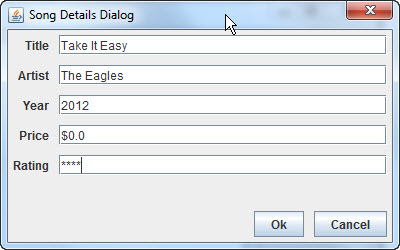
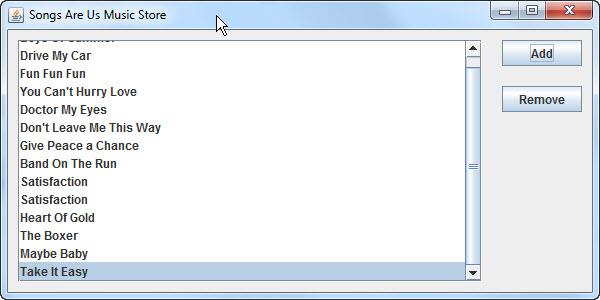
You will have to examine the code provided carefully to figure out how these methods are all supposed to interact with one another and how they should affect the music store model and the song object being edited. Note that the MusicStore and Song classes are complete an should not need modification to get the GUI and dialog to work. After completing this problem you should able to add songs to the music store by using the main GUI "Add" button and the resulting song details dialog that pops up as illustrated in the screen captures below.
After clicking the "Add" button:
After filling in song details:
After clicking the dialog's OK button:
Problem 3
Editing Songs
It would make sense to also use the song details dialog to edit song details. The current GUI only has an "Add" and "Remove" button. For this problem we want to add an "Edit" button that is only active if a song is selected in the list. The GUI is shown below.
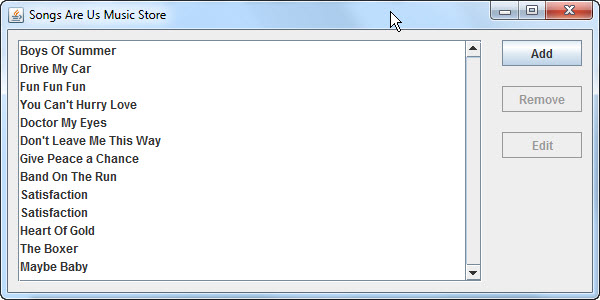
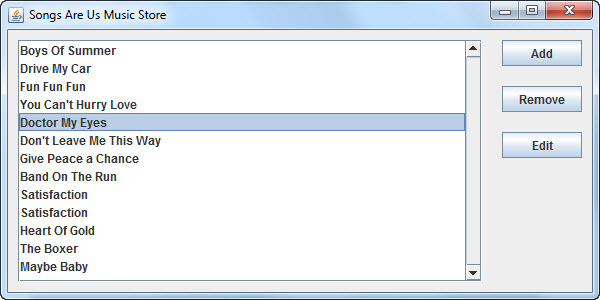
After a song is selected:
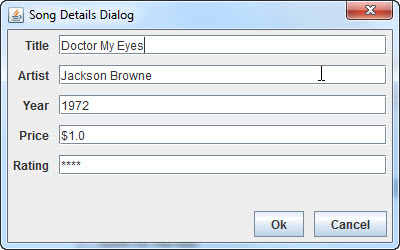
After Edit button is pressed:
For problem 3 make whatever changes are required to the code to add the Edit button with the following requirements.
-The button should be called "Edit".
-The button should be located as shown in the GUI above.
-The button should only be enabled if a song is selected in the songs
list.
-When the button is pressed a Song details dialog should open with the
selected song's contents being displayed.
-If the user edits the song's details in the song details dialog and
clicks OK the updated songs contents should be saved in the music
store. That is, if the user later selects and edits the same song the
most recent values should appear in the dialog.
After completing problems 1,2 and 3 demonstrate your results to the tutorial TA to get credit for the tutorial.
Problem 4 (Advanced Optional Part)
Double Click Edit
Modify the code so that a simple double click with the mouse on the selected song in the songs list will launch the song details dialog.